How to Grant Uprise Digital Access to Your Google Ads Account
To let us create, monitor, and optimize your Google Ads campaigns, please follow this step-by-step onboarding guide.
Step 1: Provide Your 10-Digit Google Ads ID
- Enter your Customer ID in the field below to automatically trigger the linking invitation:
Direct Support
If you already have your ID ready, you can also send it directly to Abdullah at ab@uprisedigital.com.au.
Step 2: Whitelist Uprise's Security Domain
Before you can accept our connection request, Google Ads security policies require that you whitelist Uprise Digital's domain in your account.
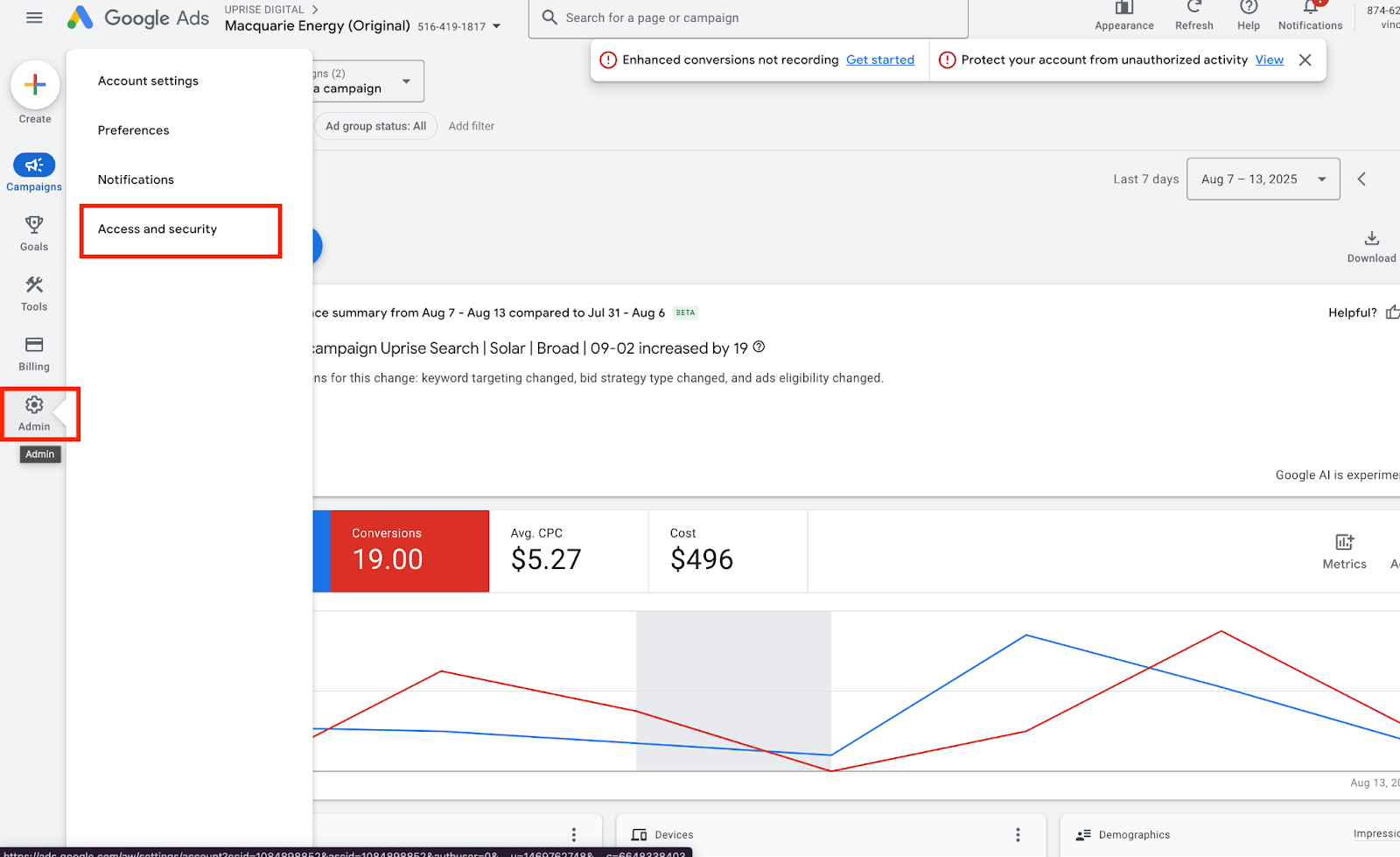
- In the left-side navigation menu, click on Admin (gear icon) and select Access and security.
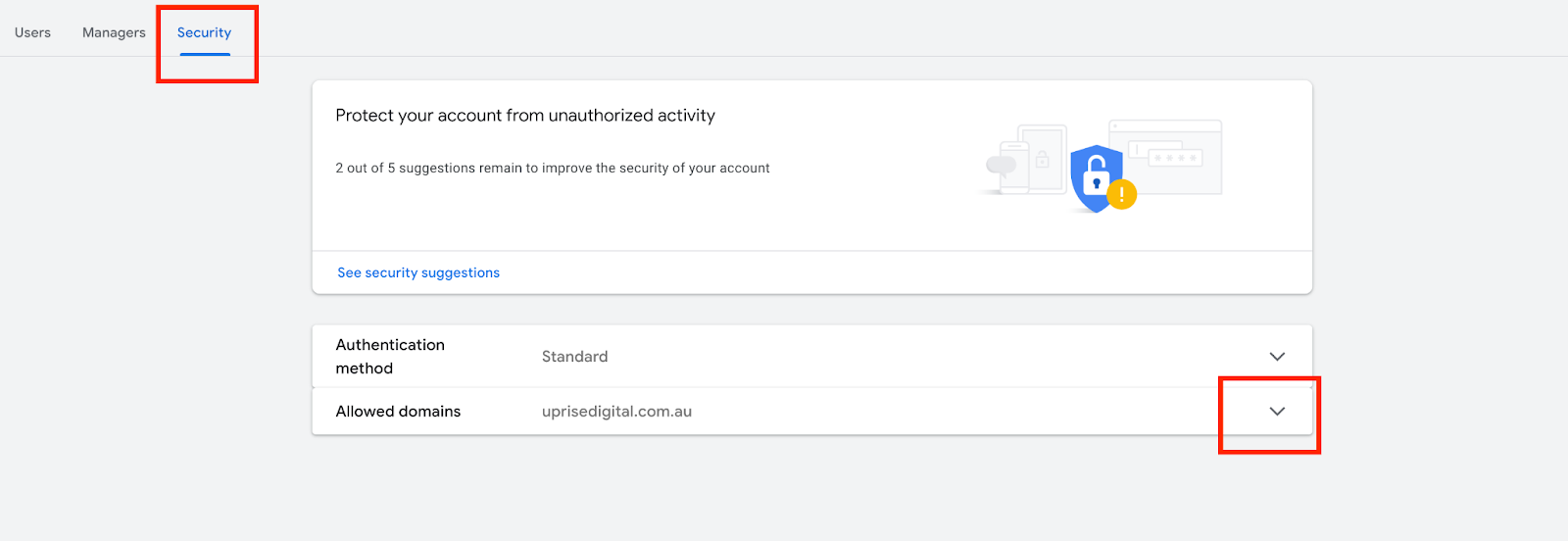
- Scroll down to the Allowed Domains section, then click on the drop-down arrow to expand it.
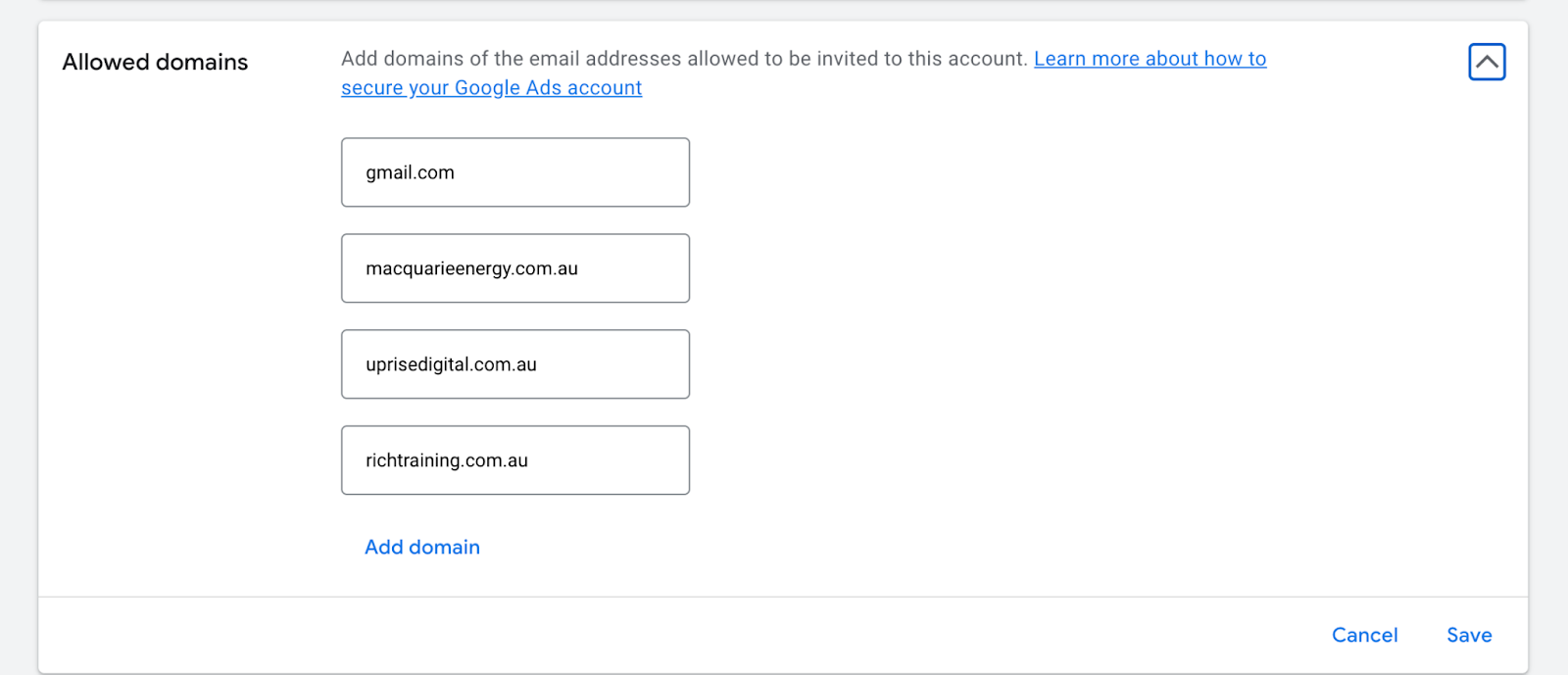
- In the blank field (where it displays
example.com), type:
uprisedigital.com.au
- Click Save to apply the security update.
Important Security Step
You must whitelist uprisedigital.com.au. If you skip this, Google Ads security will automatically block our manager connection request.
Step 3: Accept the Manager Request
Once you have Whitelisted our domain, approve our pending connection link to complete onboarding.
- Note: Google Ads might prompt you to verify the account for security purposes. Please complete the prompt and click Grant Access again to finalize connection.