How to Configure Onboarding Automation
The Onboarding Configurator gives you complete control over what happens when new clients are added to your agency portal. You can toggle active workspaces, write custom emails, and customize onboarding automation.
Why Onboarding Automation is Useful
* Standardized Workflows: Onboard clients with a single form submission. * Custom Brand Emails: Write personalized subject lines and templates containing onboarding links that adapt to each client automatically. * Security Warnings: Visual warning banners instantly warn you if an API key expires or a folder connection breaks.
Step-by-Step Configuration Guide
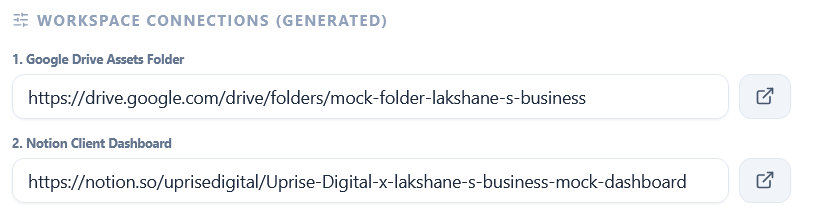
Step 1: Manage Integrations
- Toggle them ON or OFF depending on your preferences. If disabled, the portal will skip generating folders/dashboards for new clients.
Step 2: Customize the Welcome Email Template
Scroll down to the Custom Welcome Email Template card:
- Template Variables: To personalize the email dynamically, insert the following placeholder variables:
{{primary_contact_name}} - The client contact person's name.
* {{client_name}} - The client company name.
* {{drive_link}} - The generated Google Drive folder link.
* {{notion_link}} - The generated Notion dashboard link.
* {{signal_link}} - The Signal group invite link.
For example:
`markdown
Hello {{primary_contact_name}},
Welcome to Uprise! We've set up your workspaces: * Drive Folder: {{drive_link}} * Notion Workspace: {{notion_link}}
Let's do great things together!
`
Step 3: Save and Verify
- Connection Warnings: If there is a connection problem, the configurator tab displays a red warning triangle (
Connection Failed) along with the exact API error details so you can fix it before onboarding any clients.
Next Steps
Once the settings are configured and verified, you can go to the Clients dashboard, click Add Client, and watch the Google Drive, Notion, and email dispatch pipelines execute automatically!